Connecting StreamAlive Chrome Extension to Google Meet
Written By Team Streamalive
Last updated 11 months ago
StreamAlive allows you to integrate interactive elements seamlessly into your Google Meet Meeting. Follow these simple steps to connect the StreamAlive Chrome extension and start enhancing your professional live streams:
Add the StreamAlive Chrome extension to your browser
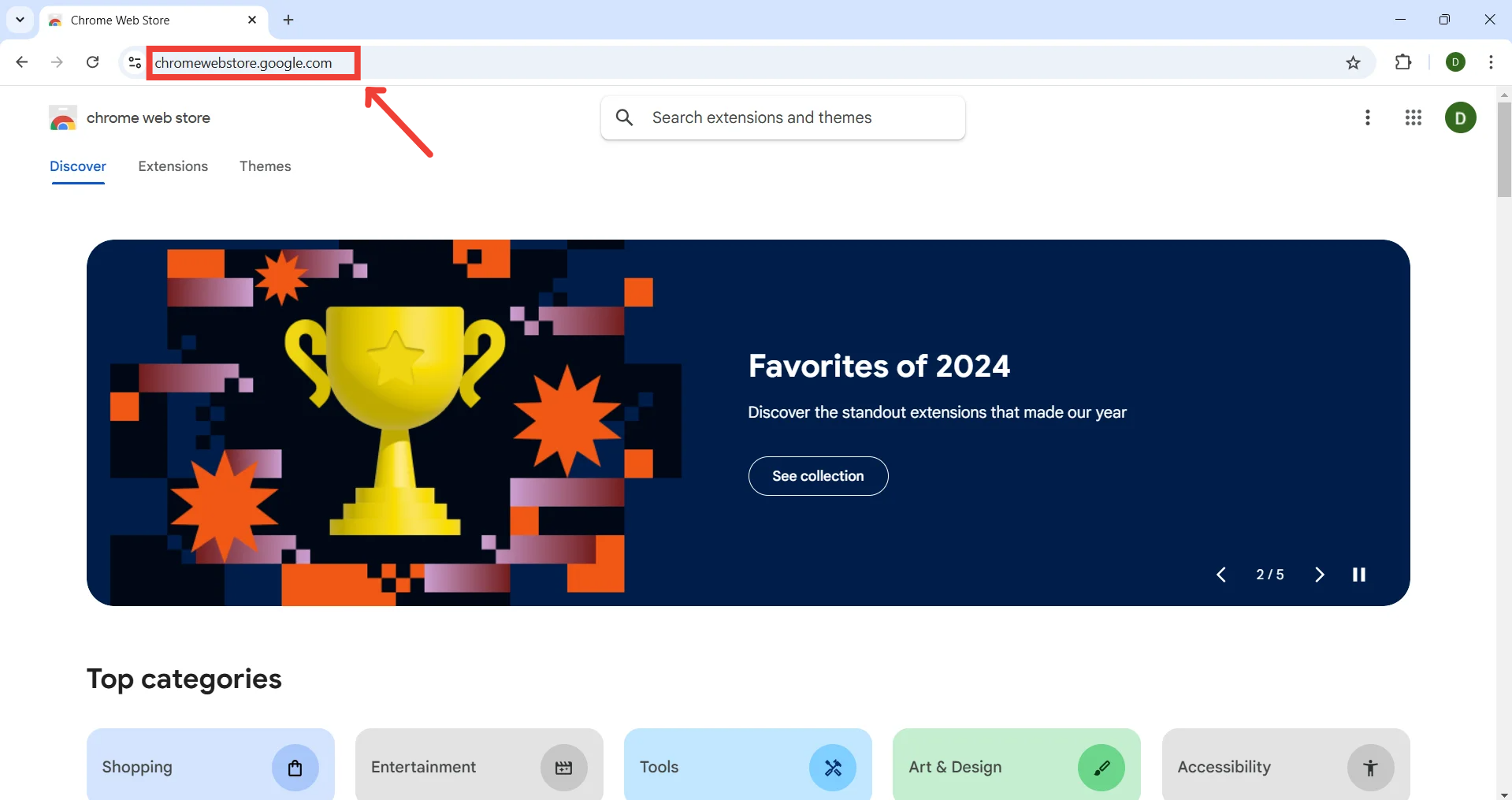
Go to chromewebstore.google.com
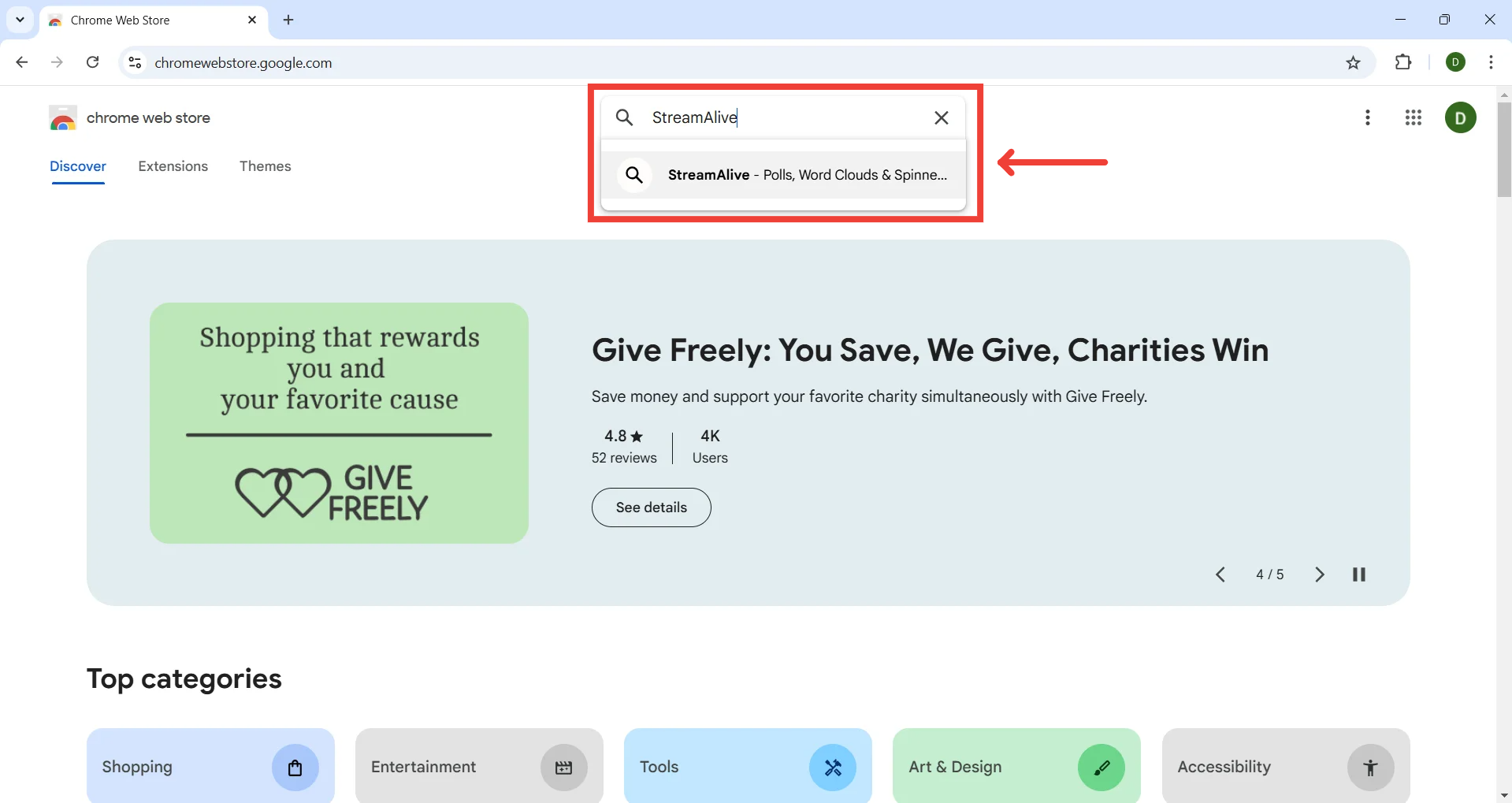
Search for "StreamAlive" in the search bar
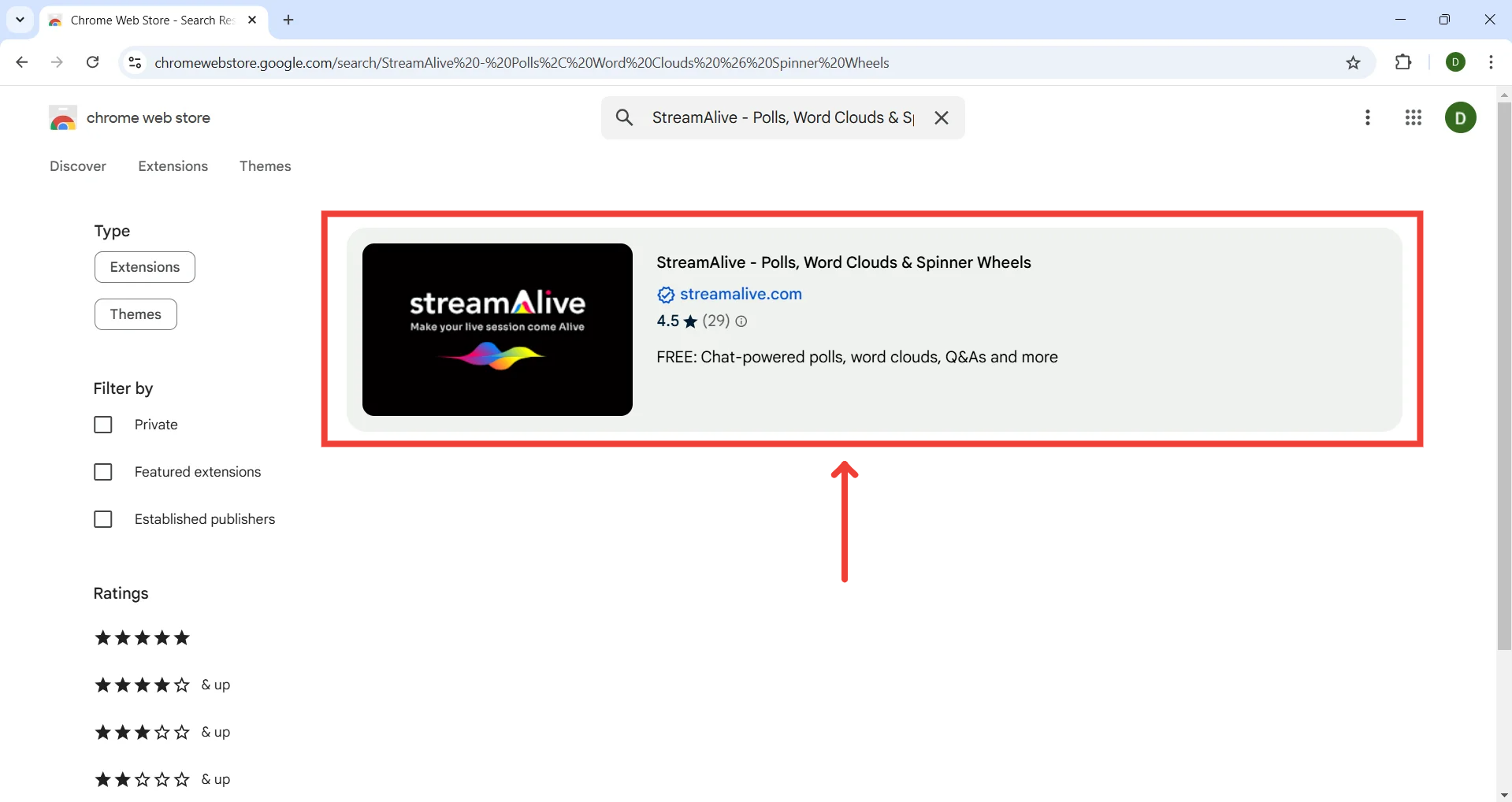
Click on the StreamAlive listing
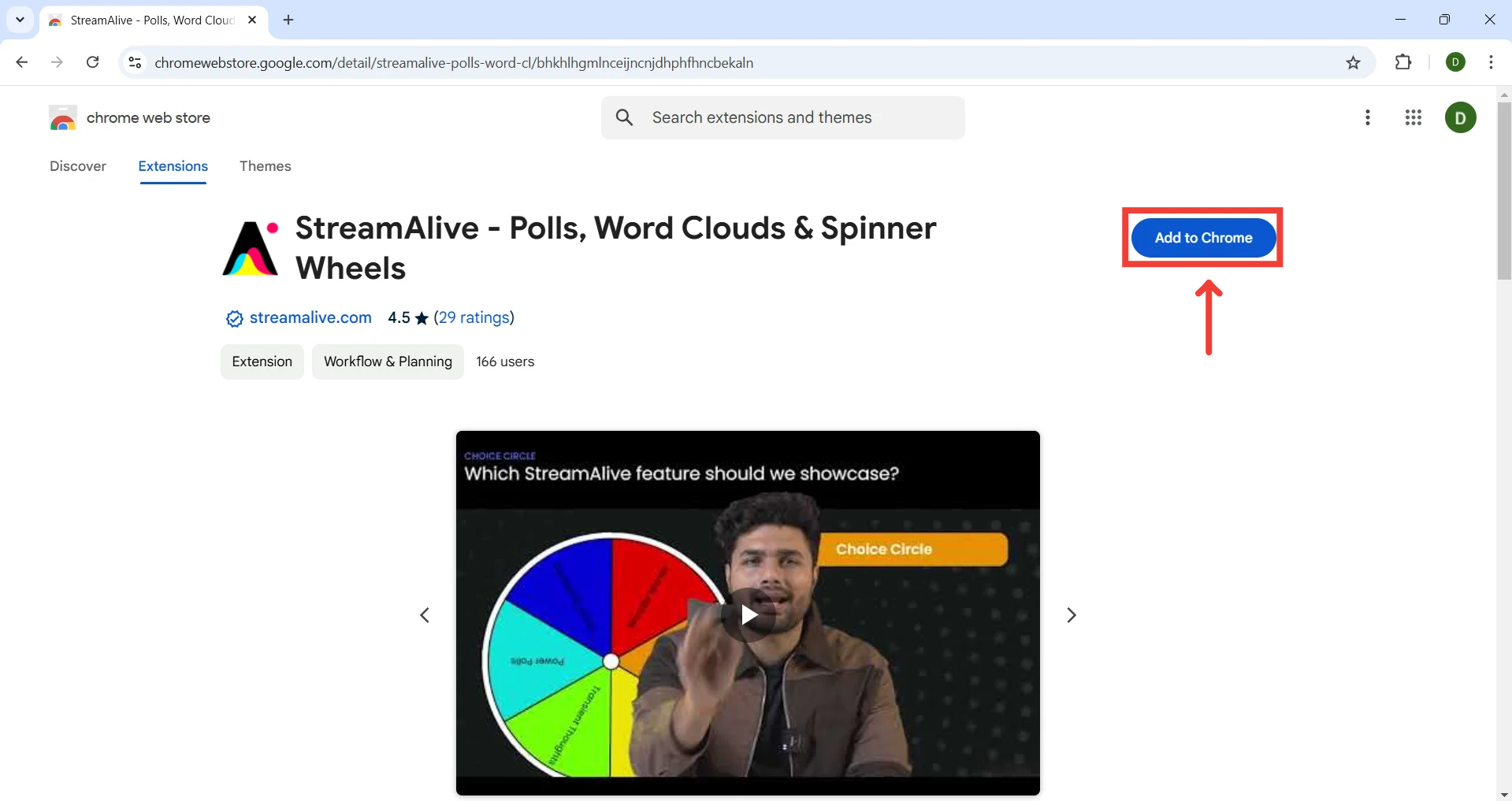
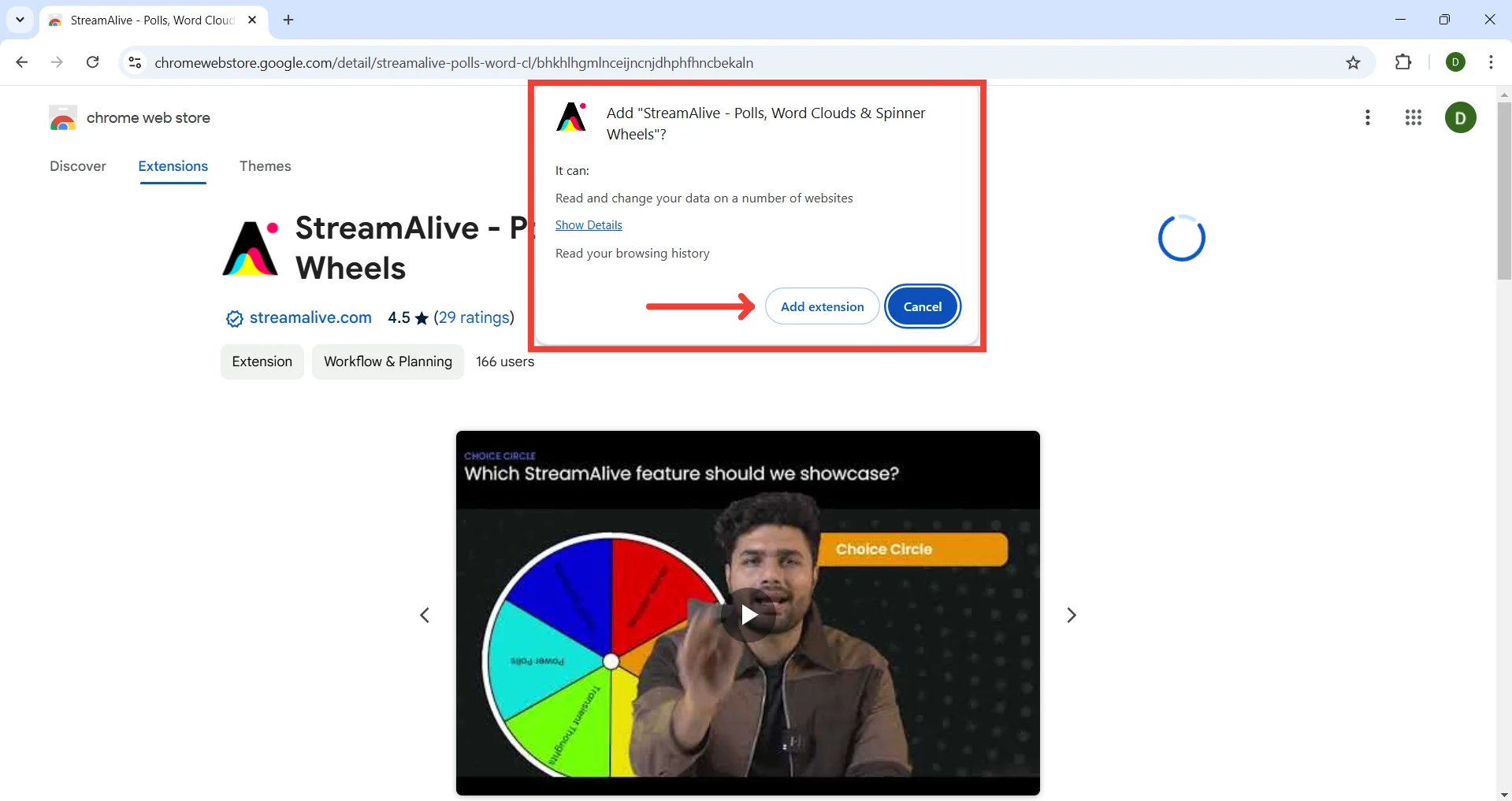
Click on Add to Chrome
Confirm by clicking on Add Extension
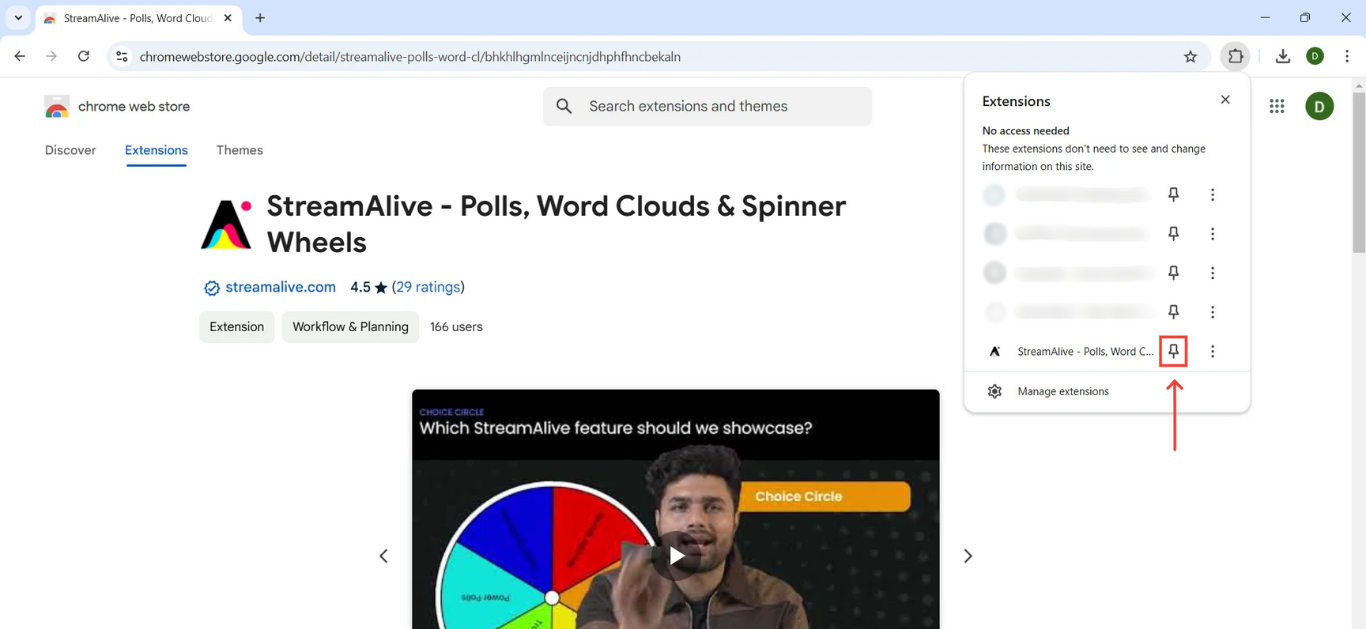
Pin the extension
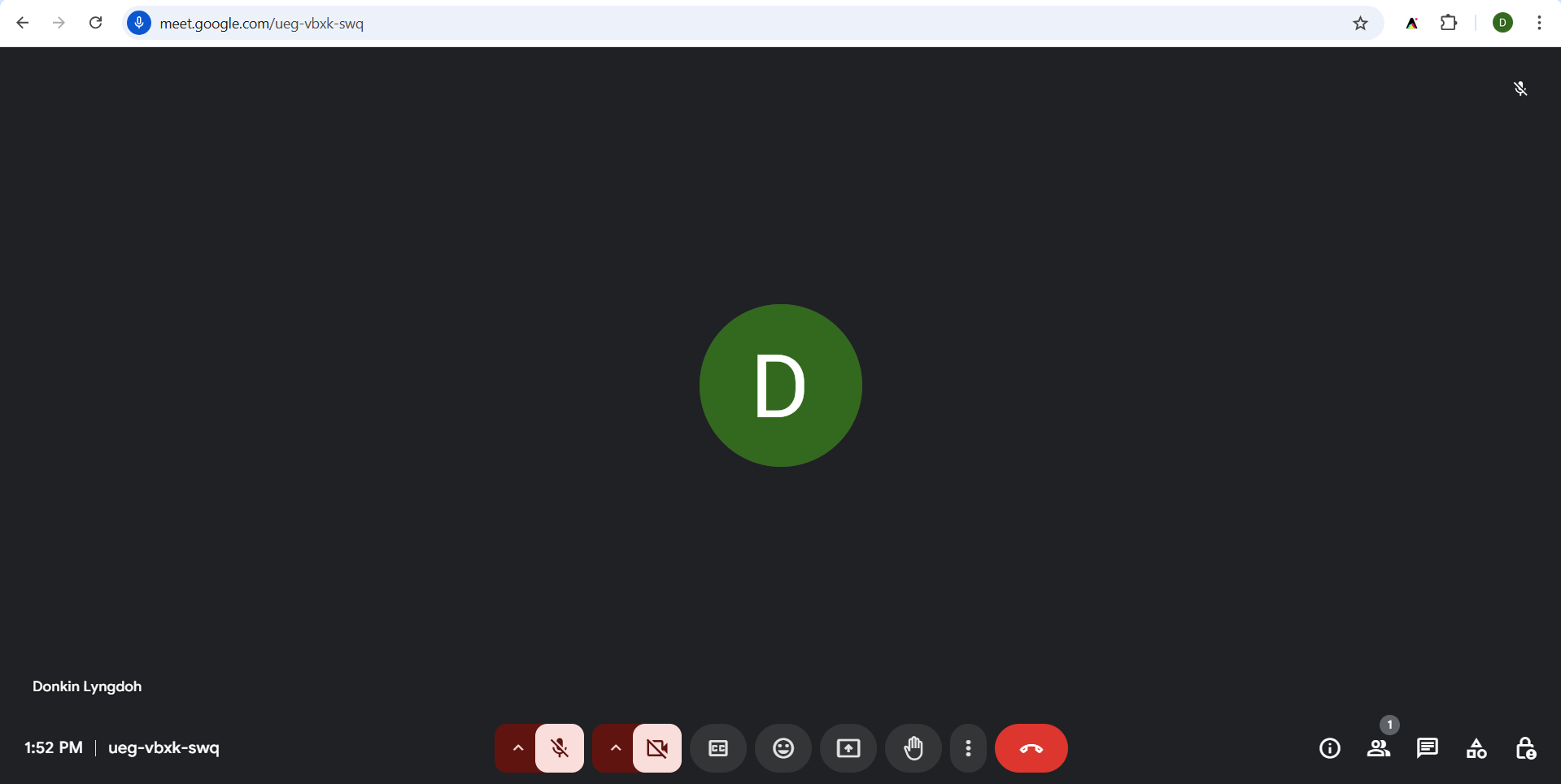
Create/Enter the Google Meet Session
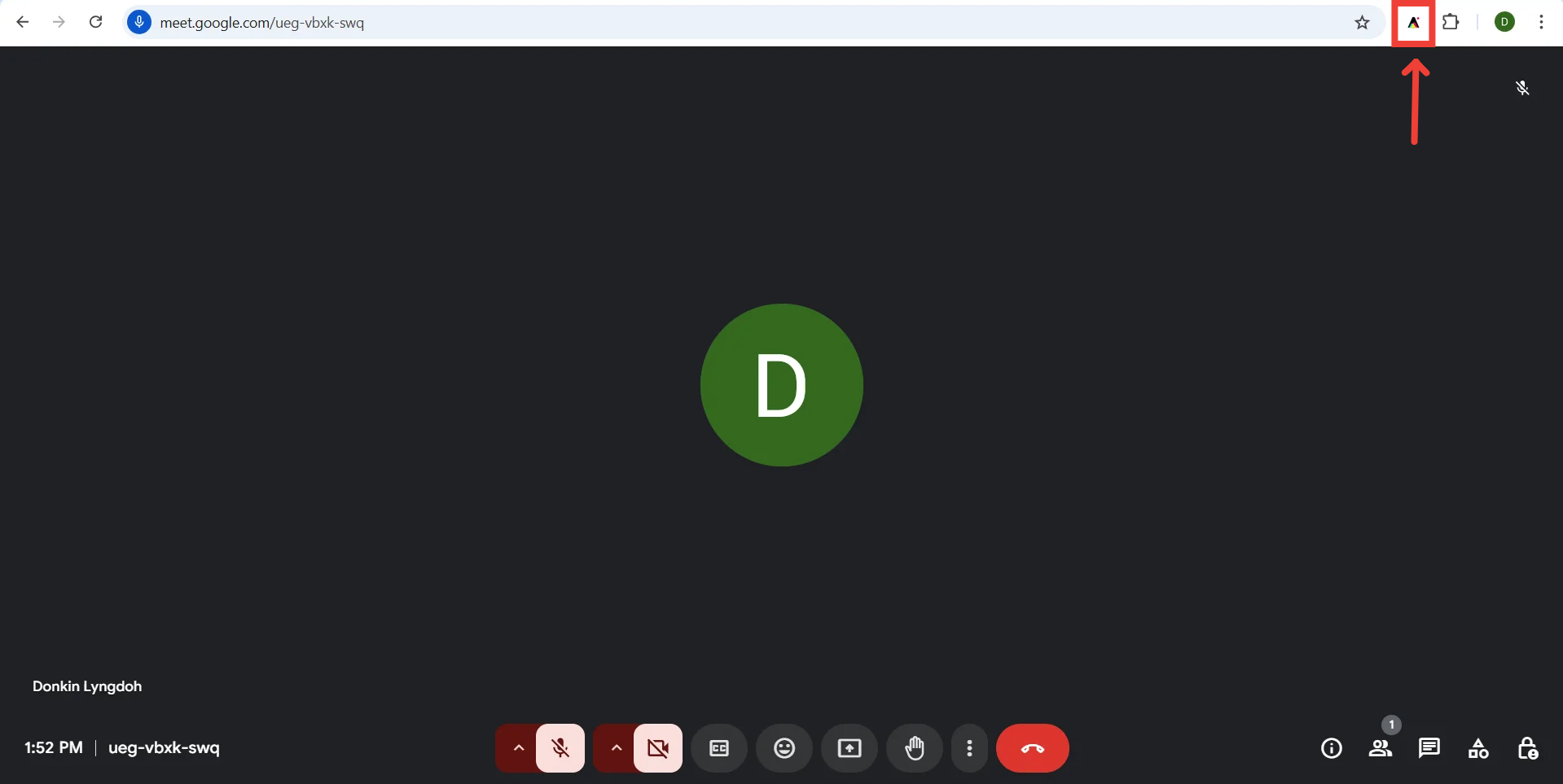
Activate the StreamAlive Chrome Extension
Click on the StreamAlive extension icon in your Chrome toolbar.
Click on Connect
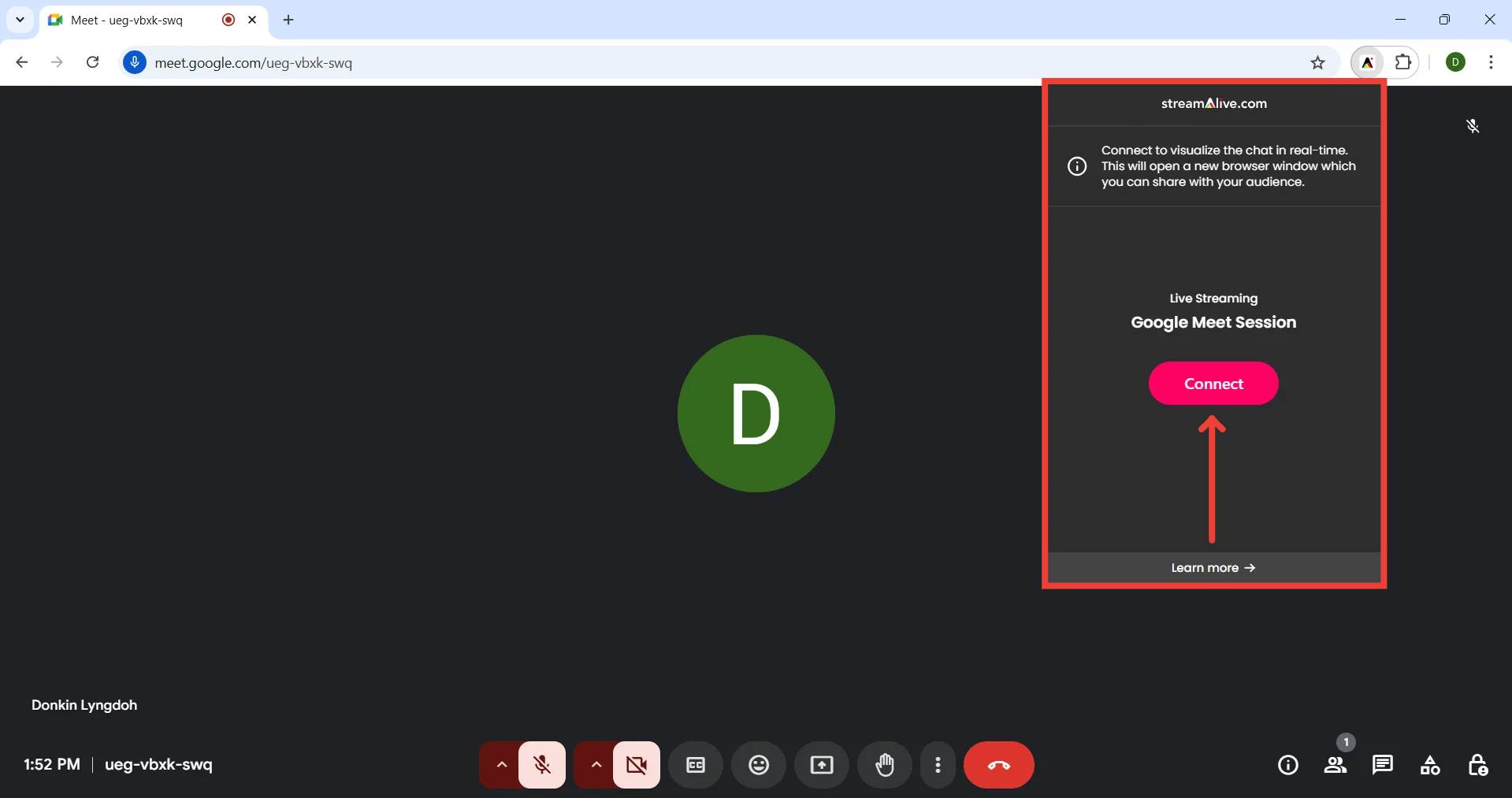
Run StreamAlive
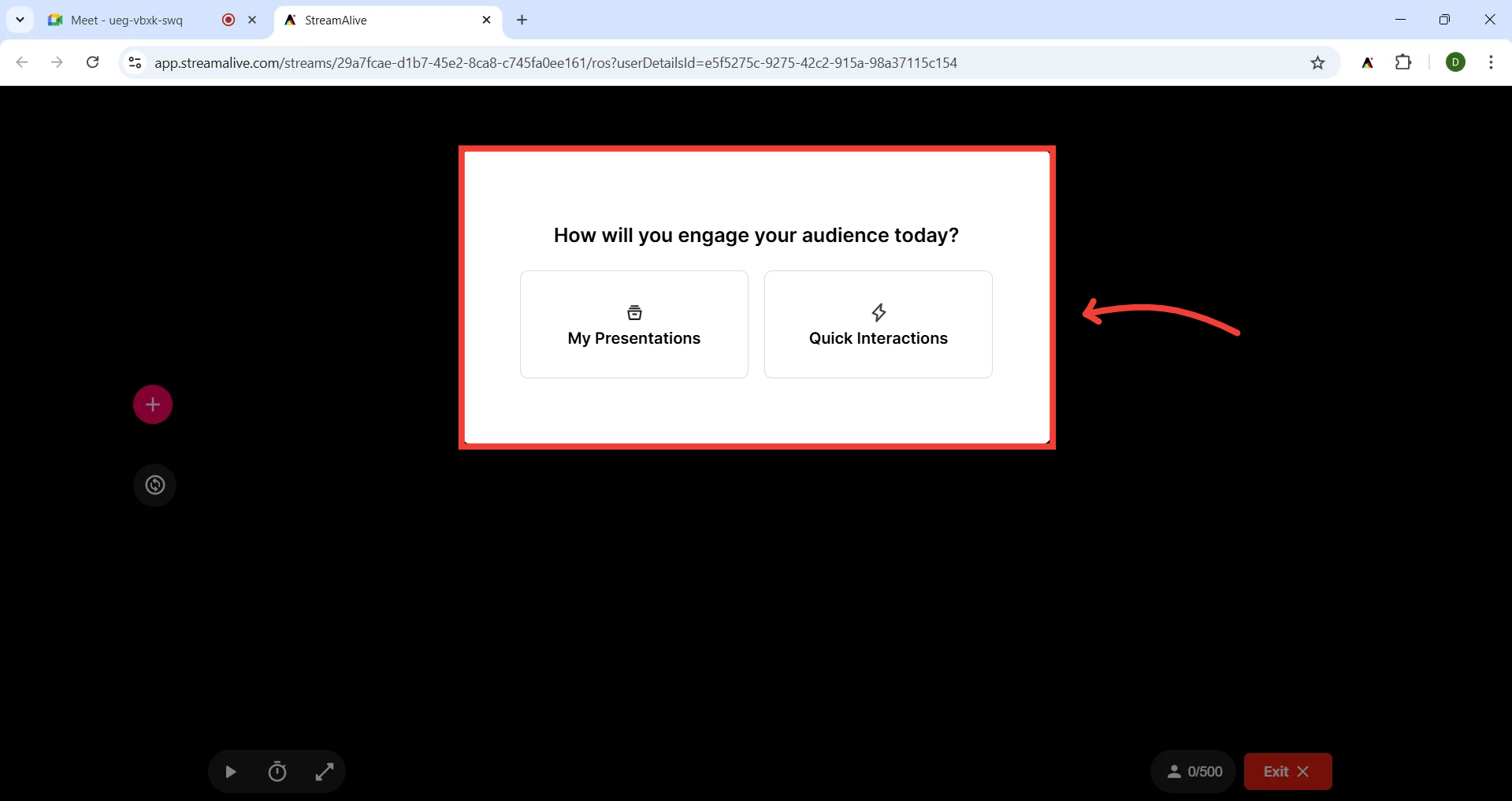
A new tab will open, displaying the StreamAlive Go Live Presentation screen.
From here, you can choose to continue with a presentation or use quick interactions/impromptu interactions if you do not have a presentation prepared.
For this tutorial, we will be continuing with a created presentation.
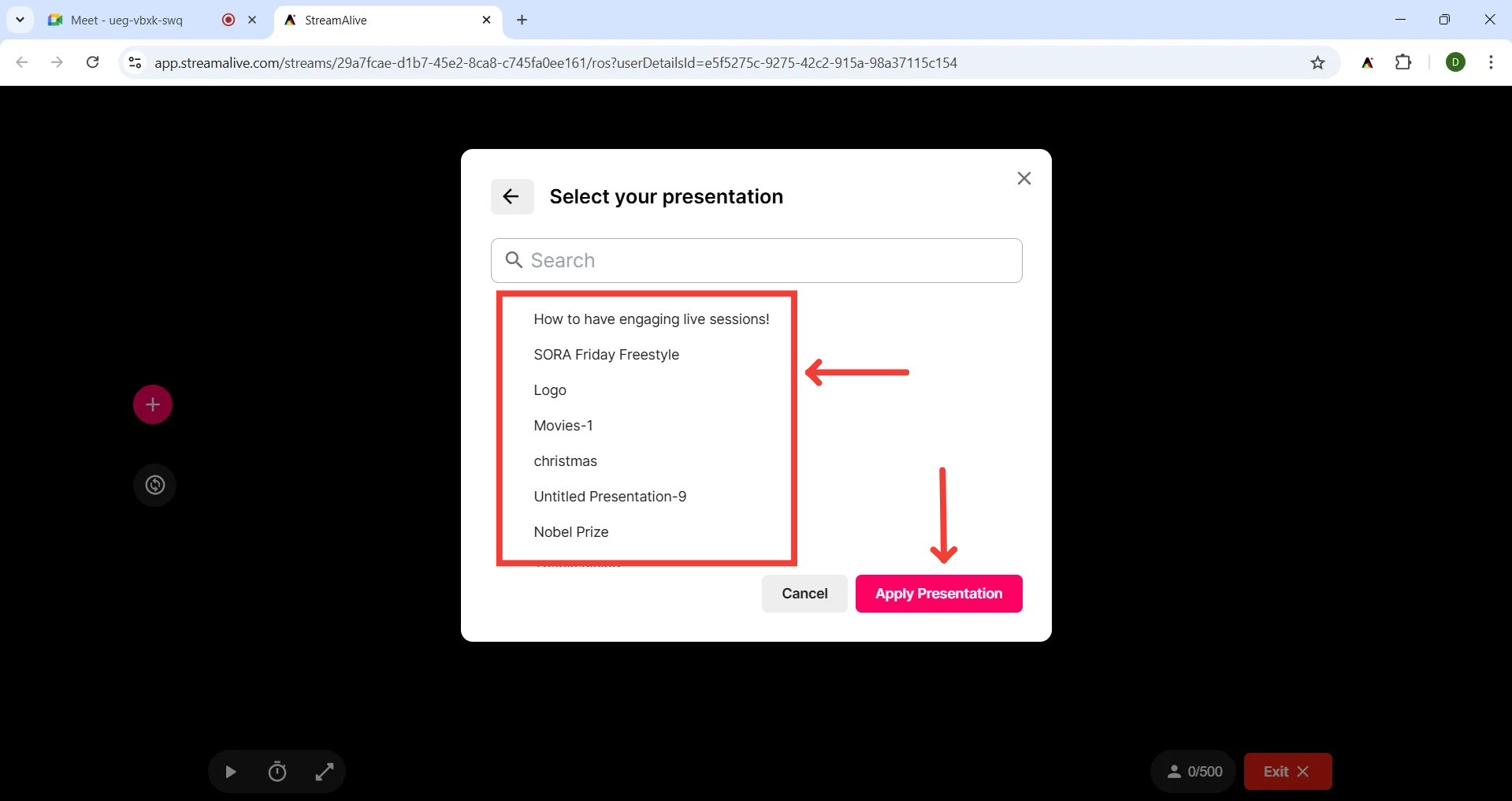
Choose a presentation that you have created previously and click on Apply Presentation.
Your presentation slides have been added
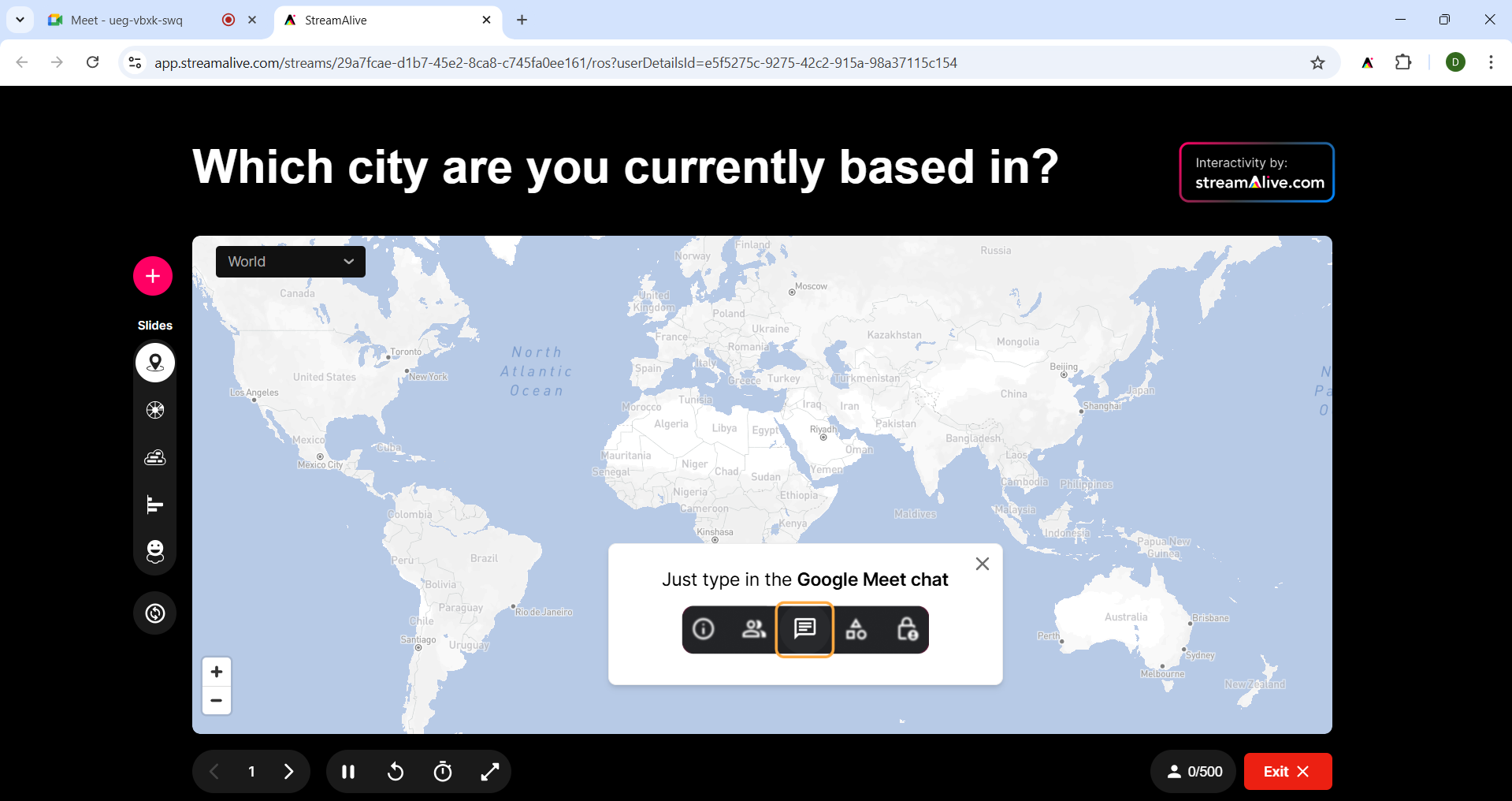
Ask your audience to enter responses in the chat.
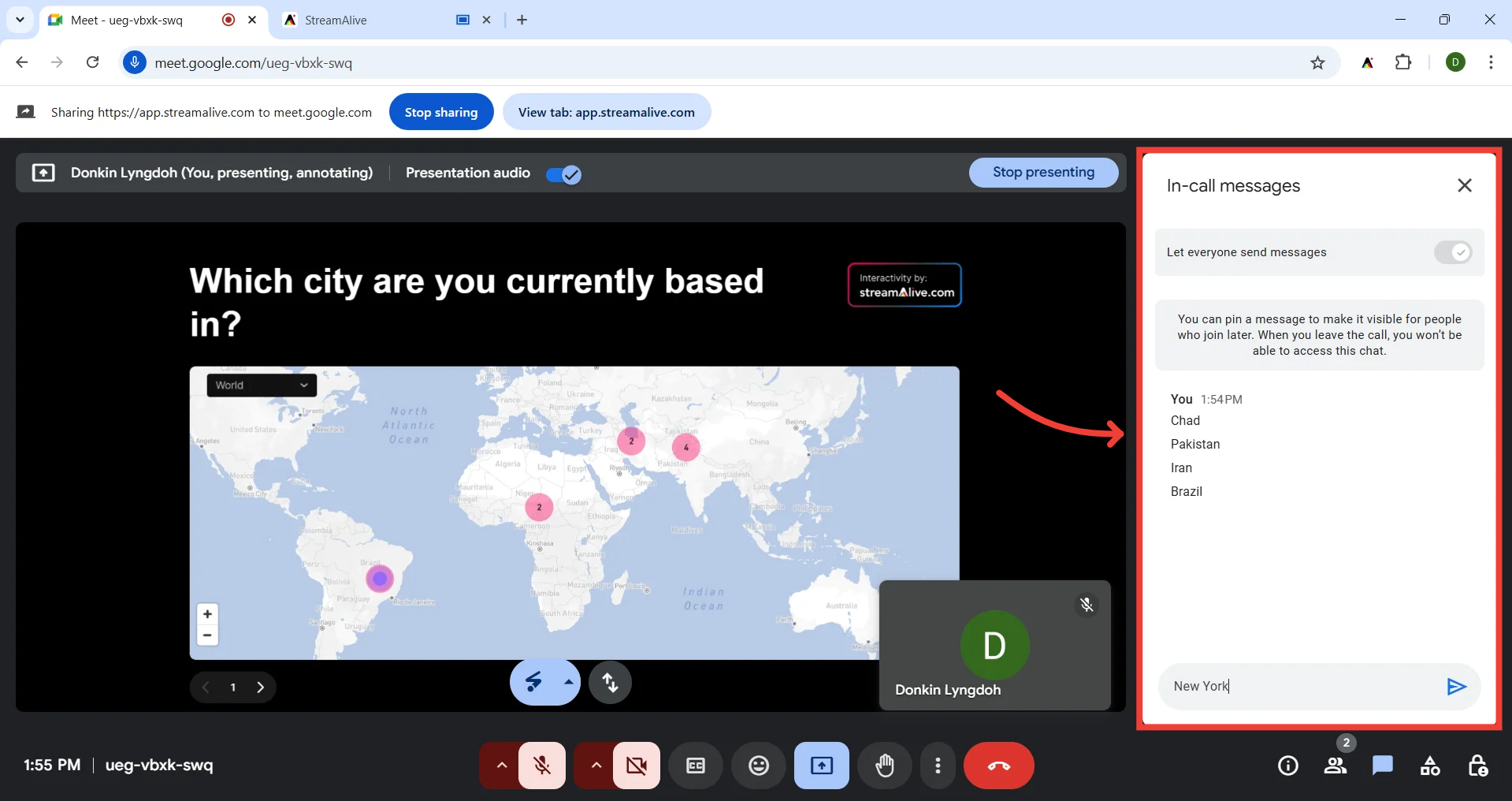
StreamAlive will then take these answers and power the interactions
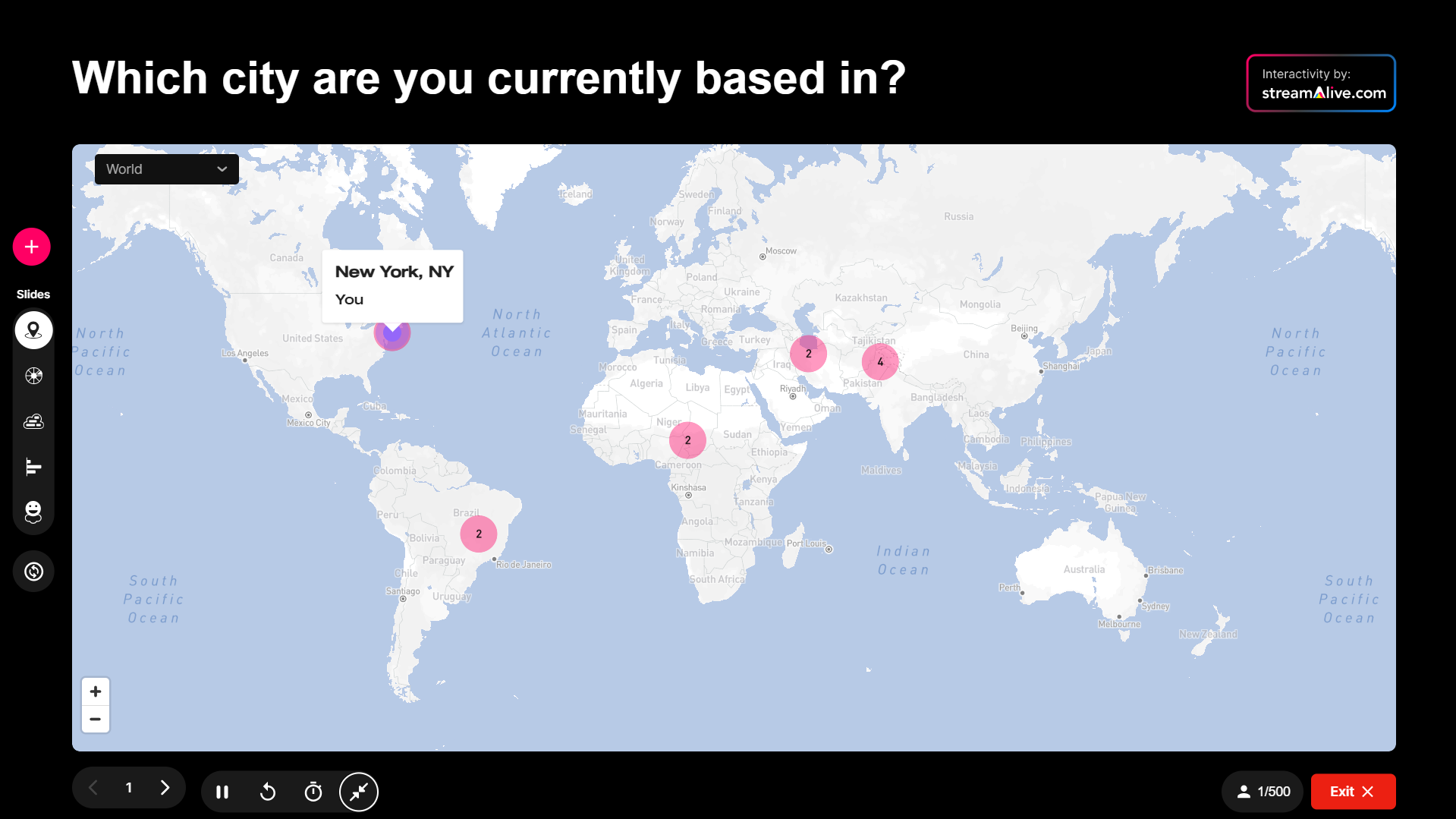
That's it! You've successfully connected StreamAlive to your Google Meet Session.
Additional Notes:
Ensure you have the latest version of the StreamAlive Chrome extension installed.
If you encounter any issues, refresh the StreamAlive tab or check your internet connection.
For detailed instructions on creating and managing presentations within StreamAlive, refer to the StreamAlive user guide.
Enjoy creating dynamic and interactive professional live streams with StreamAlive and Google Meet!