Connecting Your StreamAlive PowerPoint Interactions to a Live Session
Written By Donkin Lyngdoh
Last updated 9 months ago
Before reading this help doc, please ensure you have:
Once your StreamAlive interactions are embedded into your PowerPoint, the final step is to connect your deck to a live session so it can collect real-time chat responses.
Connecting Your PowerPoint to a Live Session
Once you’re ready to connect to your session:
Click Choose Platform.
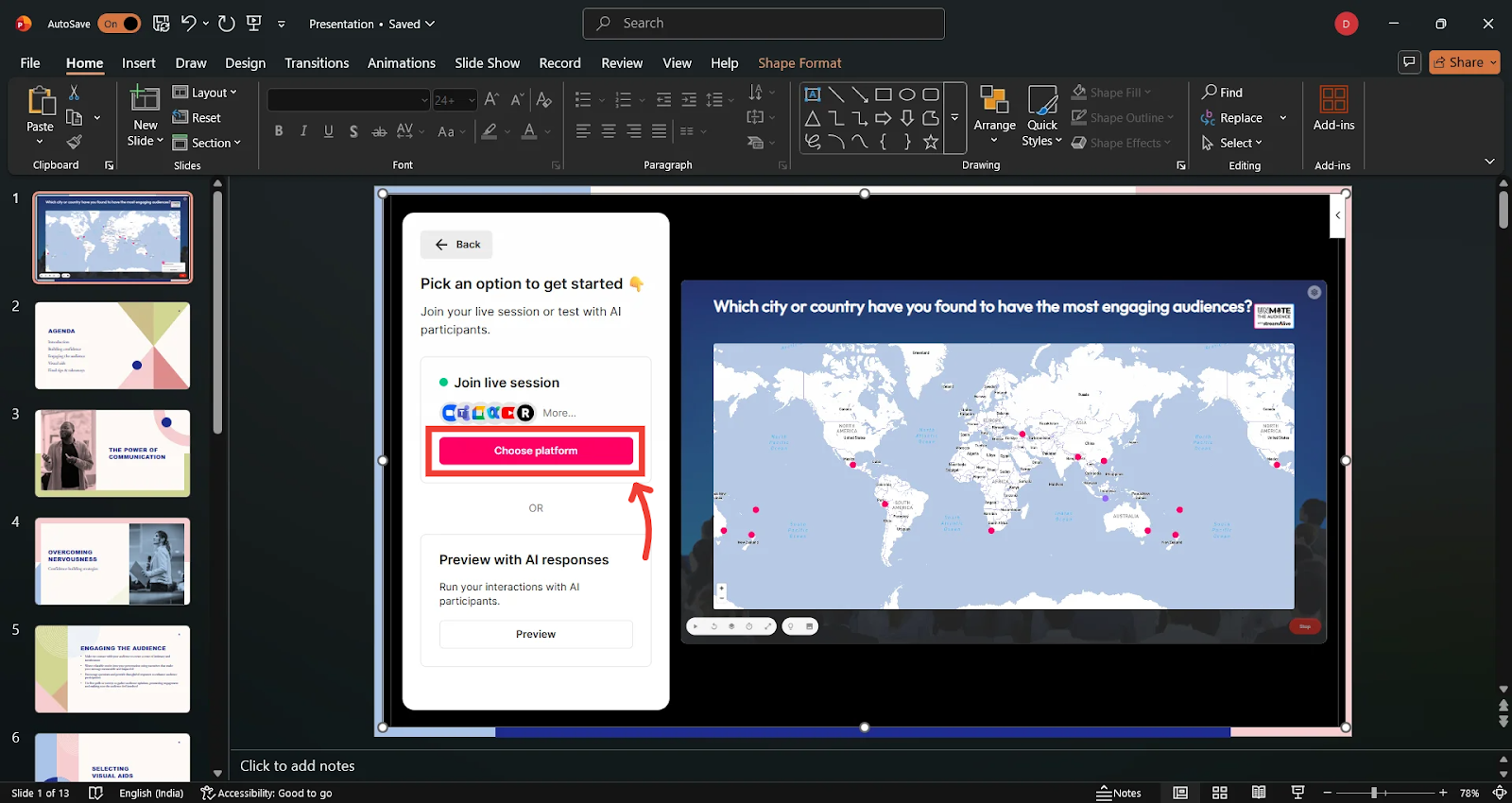
StreamAlive supports many platforms, including Zoom, Teams, Google Meet, YouTube, and even in-person sessions.
For this example, we’ll connect to Zoom.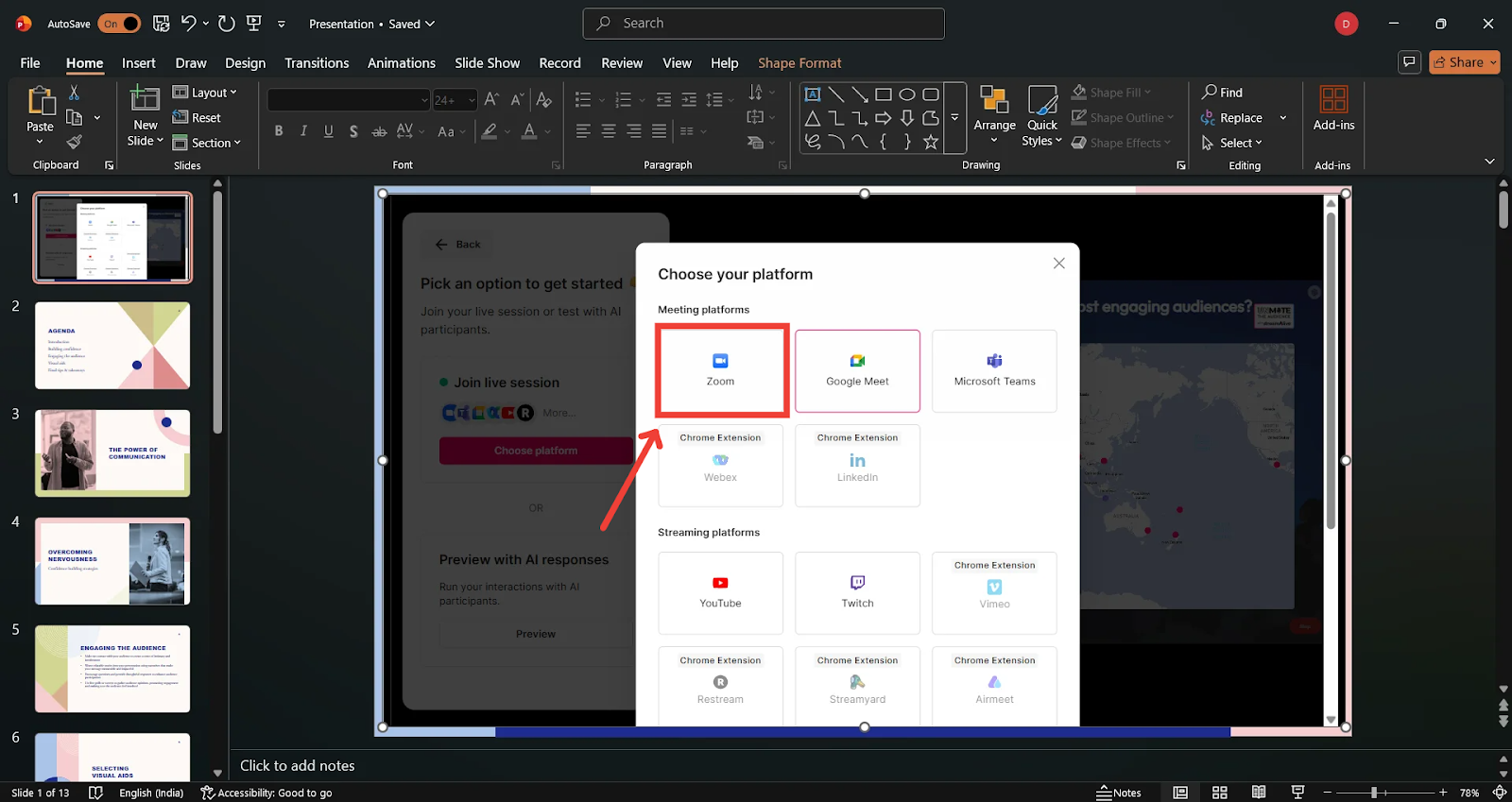
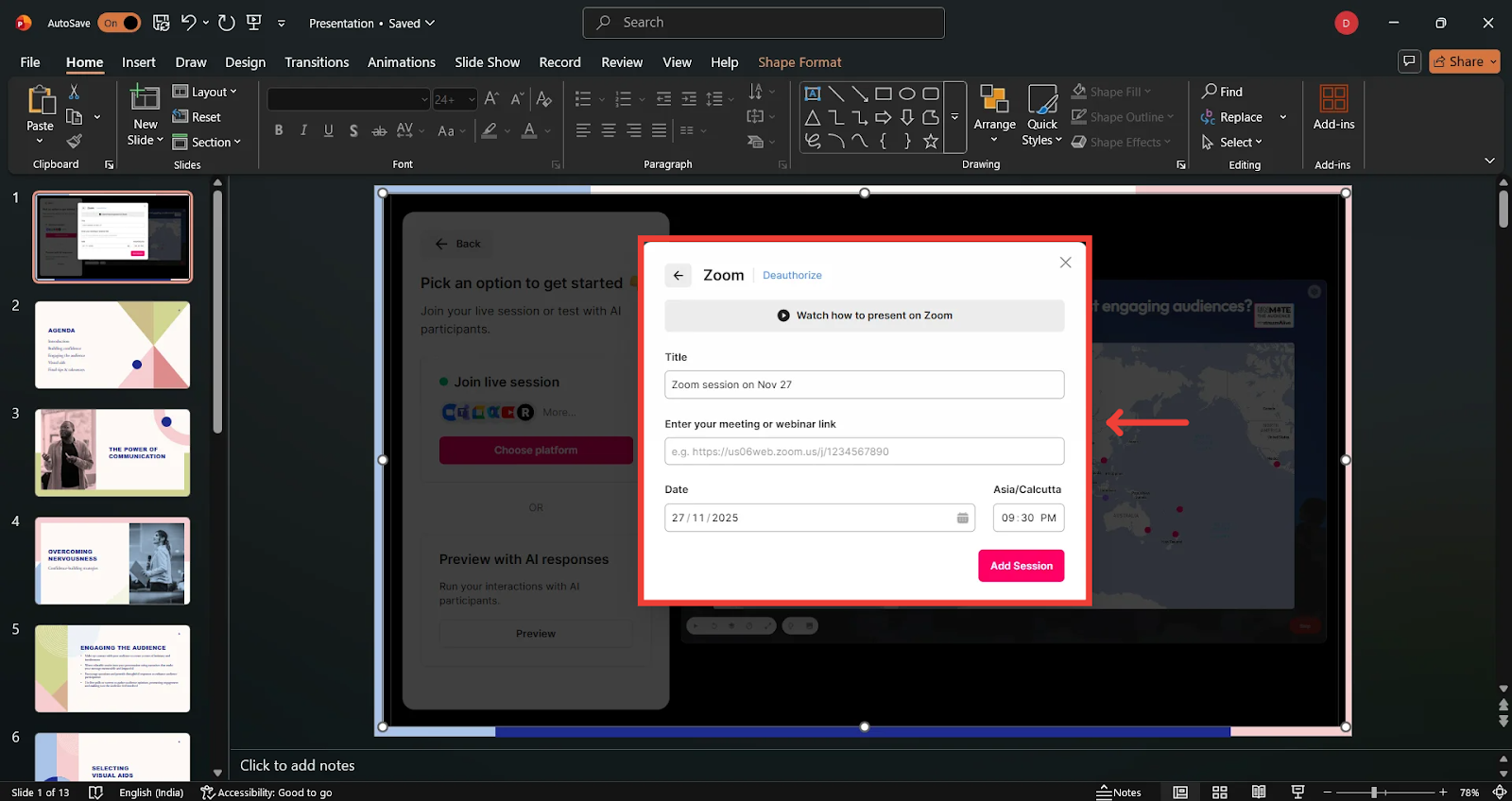
Enter Your Session Details
Add your session title
Paste your meeting link (If you don’t know where to find the meeting link, read this help doc)
Set the date and time
Click Add Session
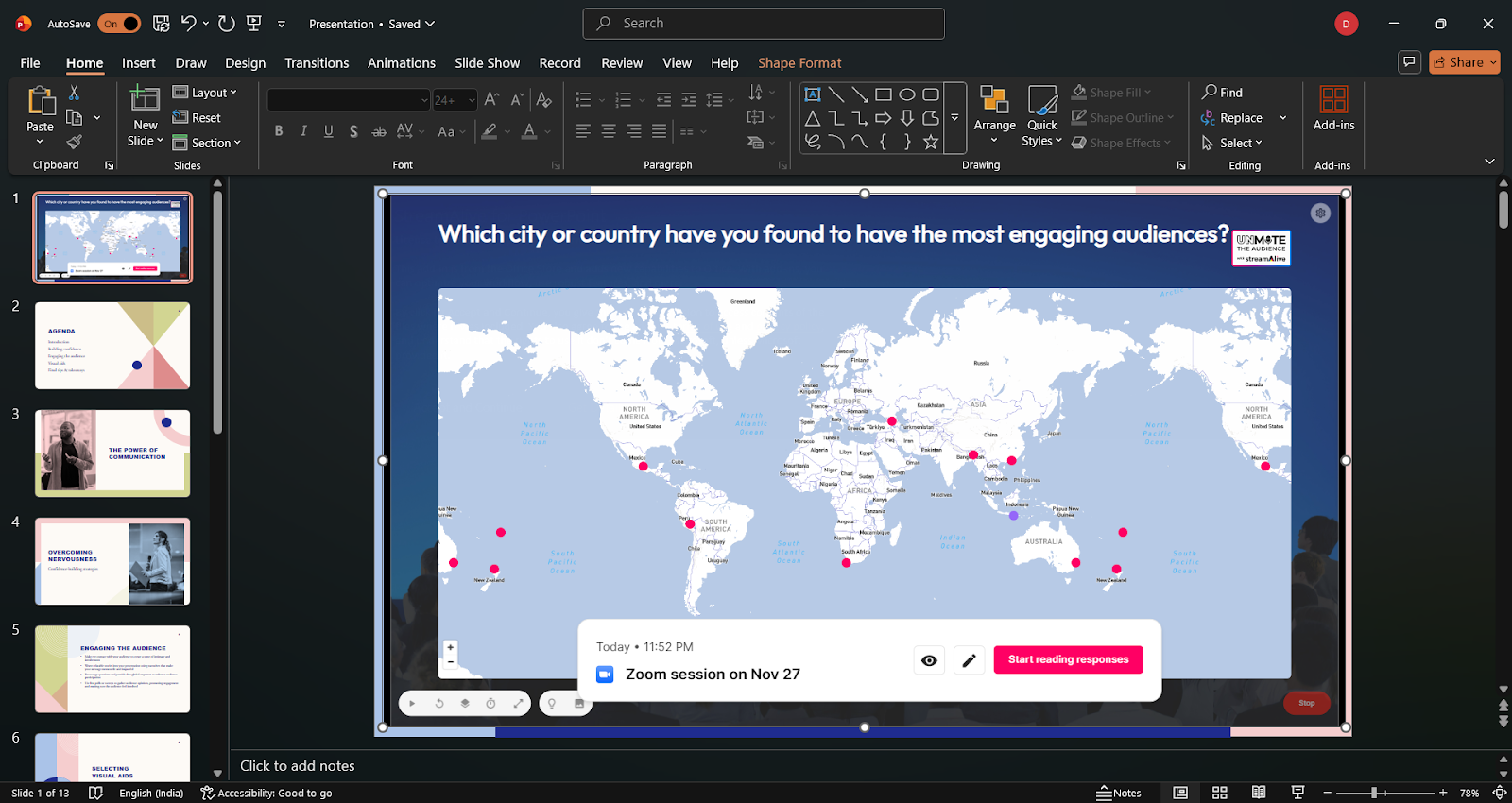
Your session is now scheduled, and you can preview or edit it at any time.
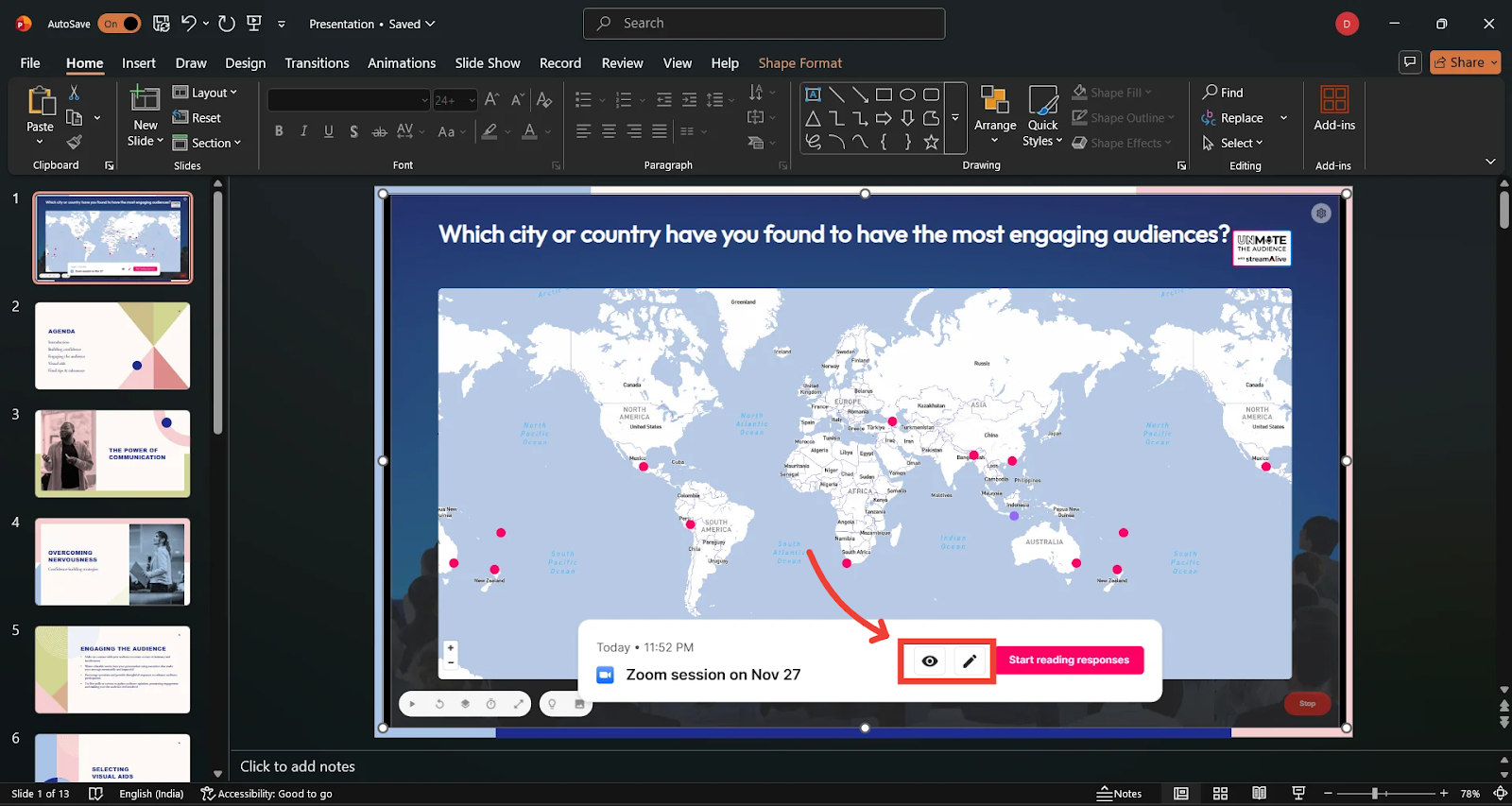
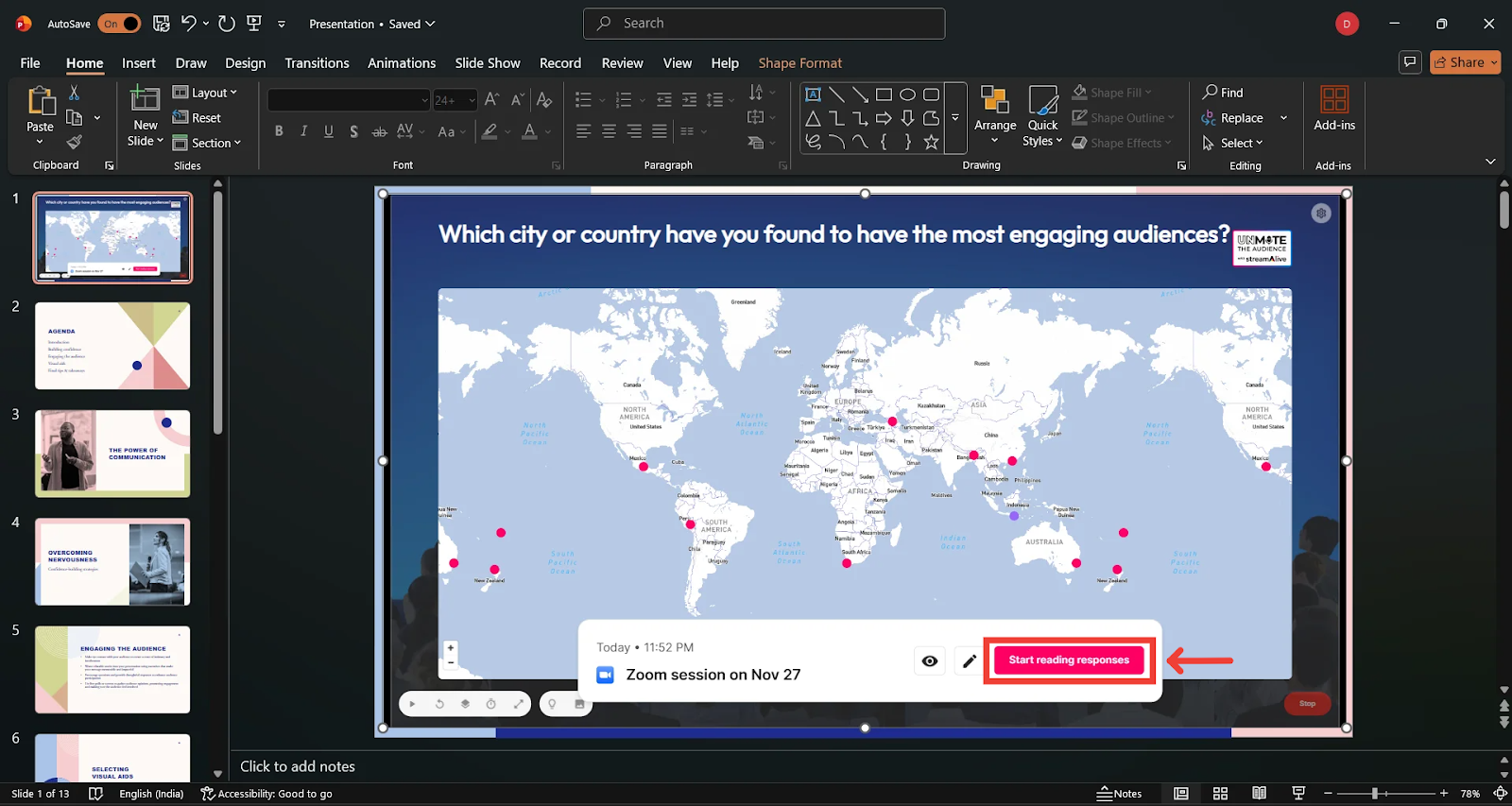
When ready:
Click Start Reading Responses.
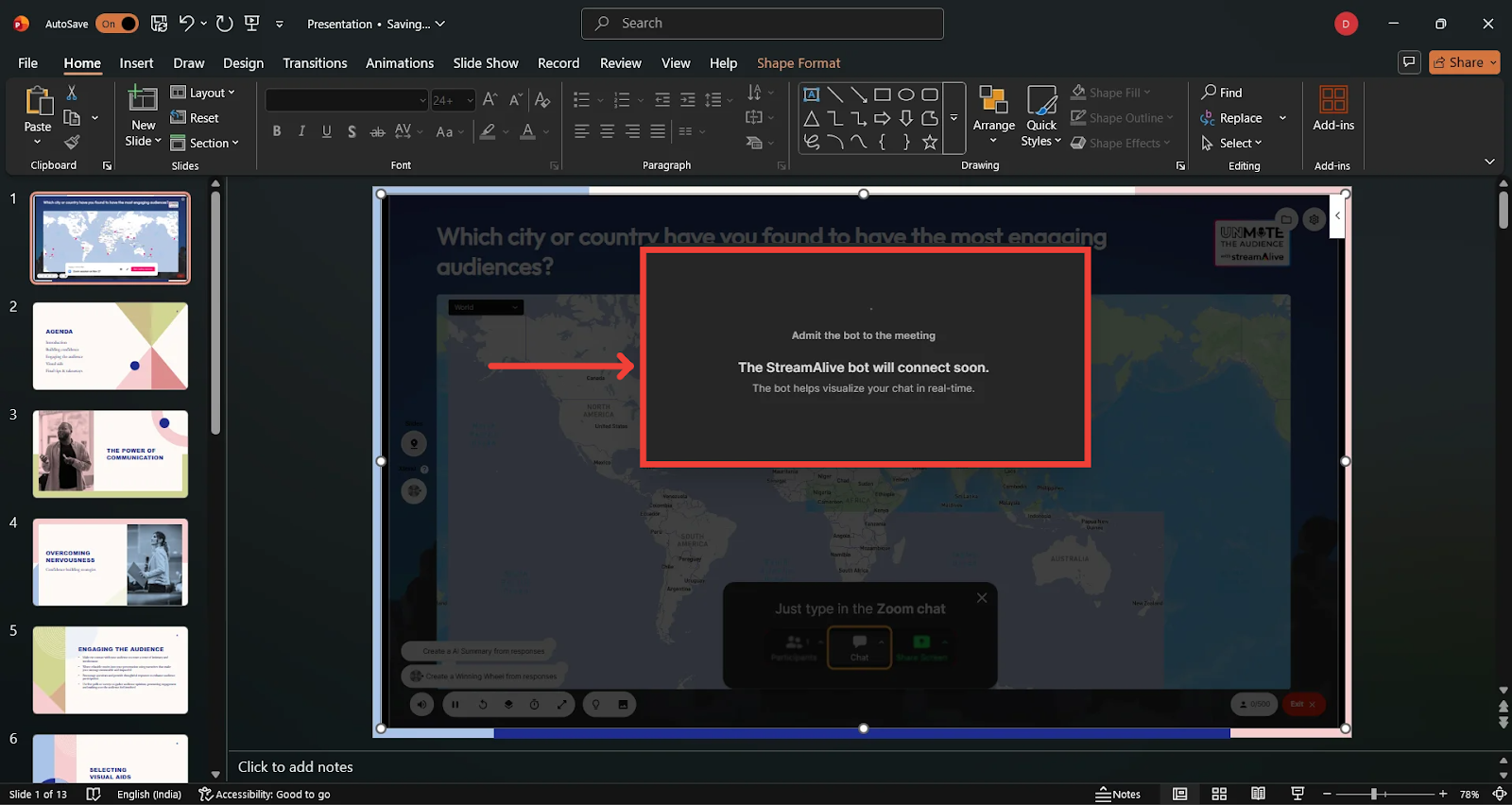
A pop-up will appear asking you to admit the StreamAlive bot into your meeting.
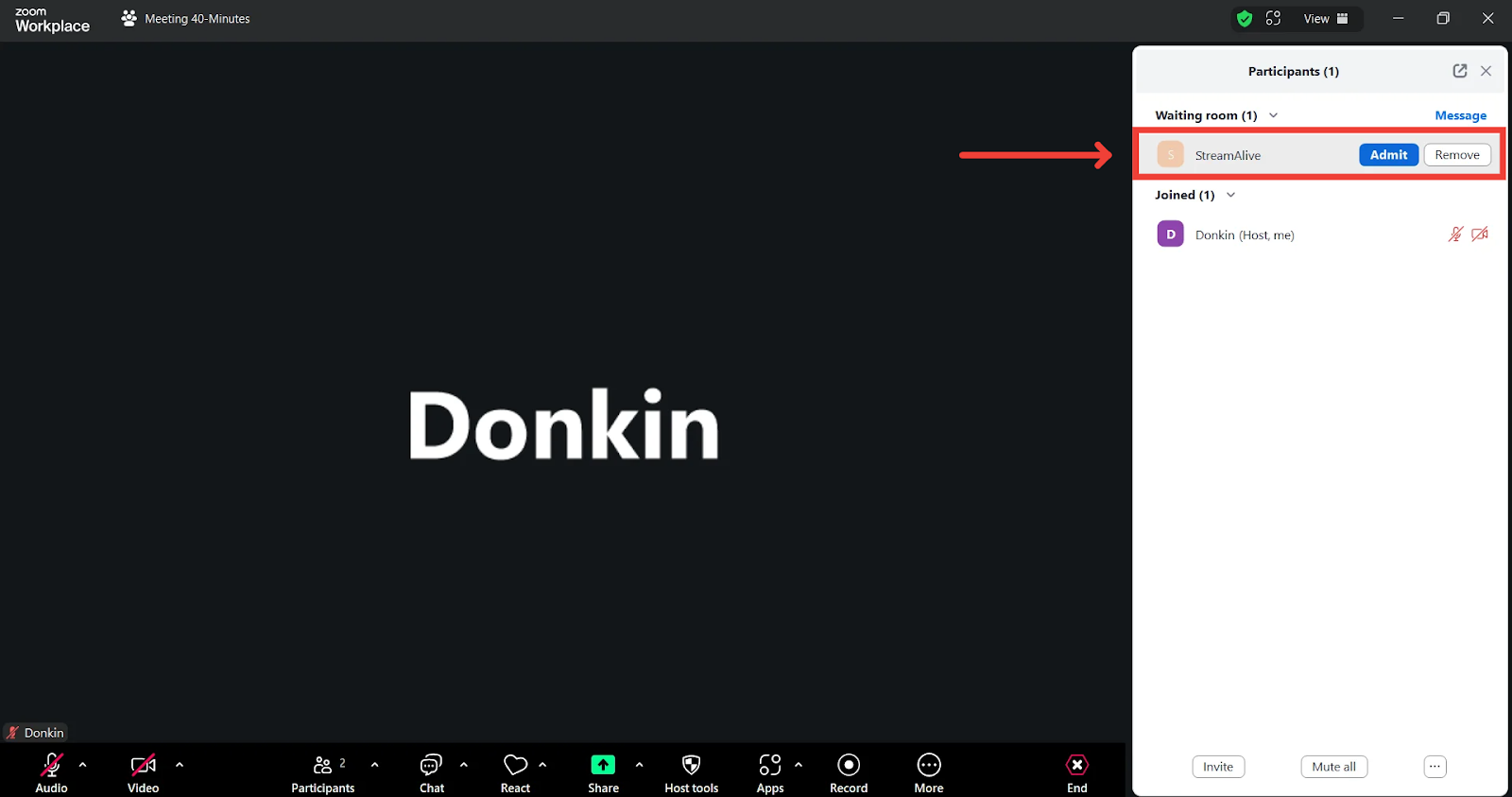
Once admitted, you can start picking up responses for your StreamAlive interactions.
Click Start StreamAlive to activate it.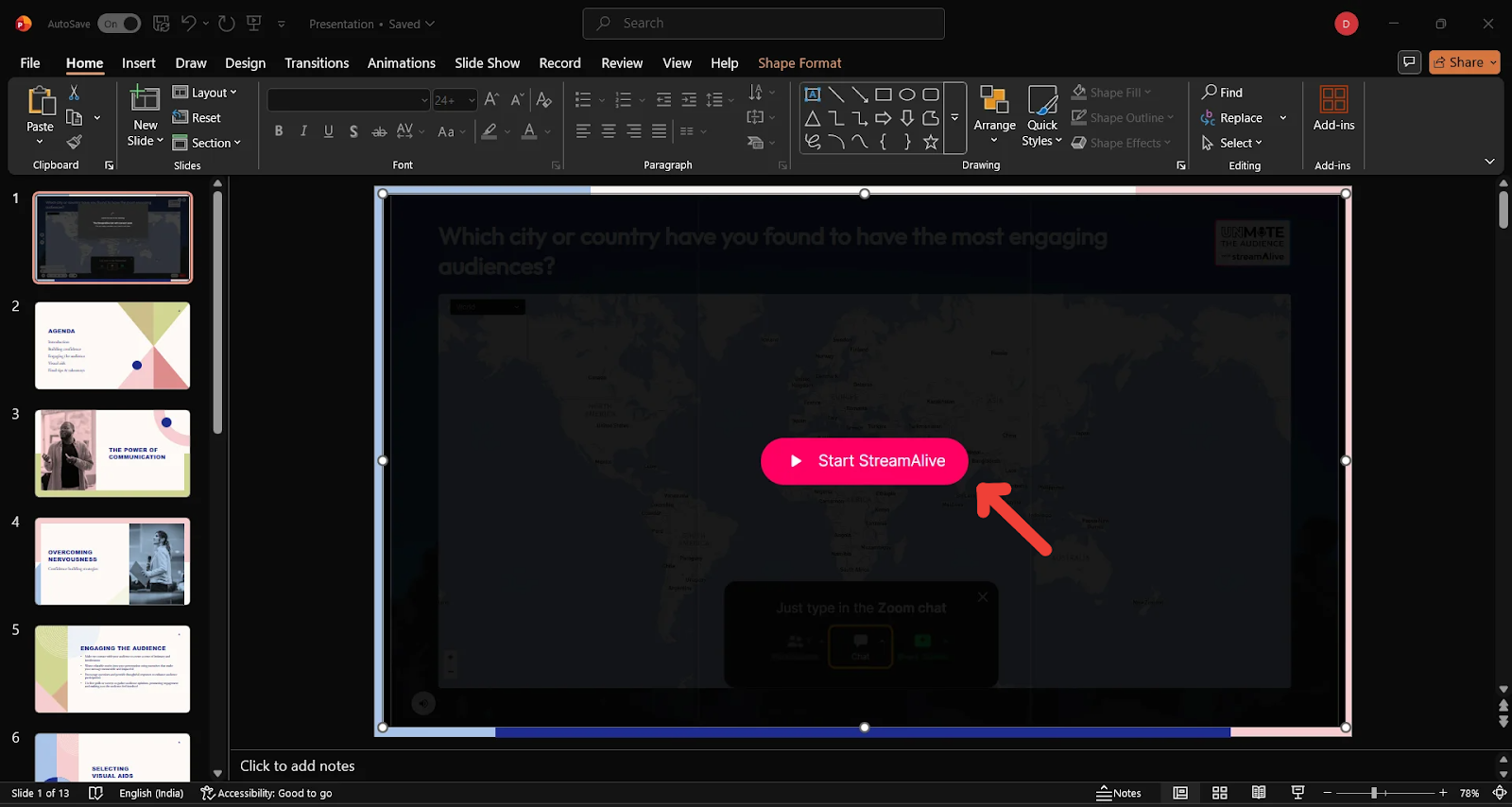
Going Live With Your Interaction
Back in PowerPoint, you’ll see the Start StreamAlive button on each interaction slide that you’ve added
Click it whenever you're ready.
Now:
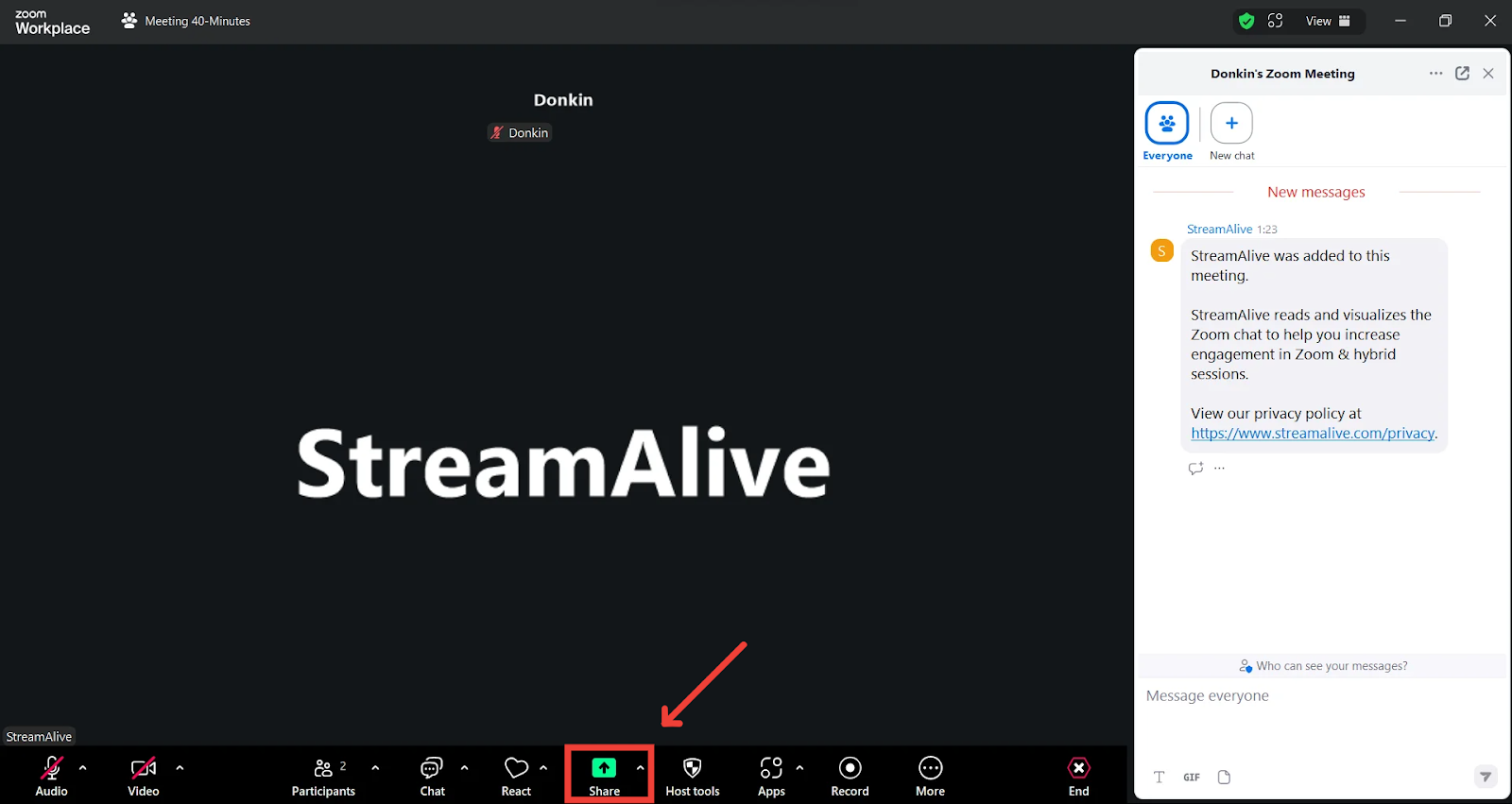
Share your screen in Zoom
Ask your audience to respond in the chat
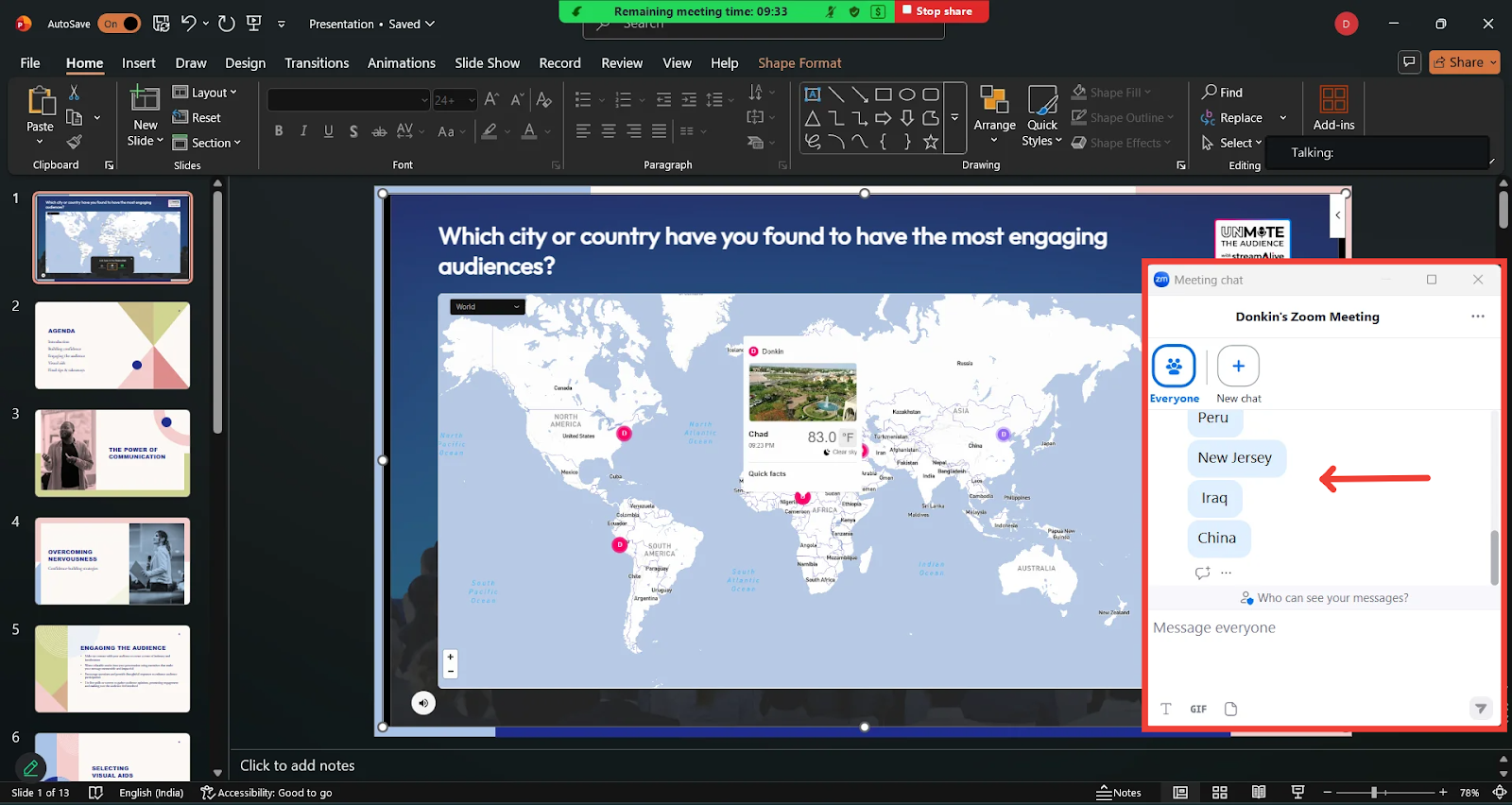
Watch the interaction populate in real time

StreamAlive updates instantly as messages come in.
And that’s it! 🎉
You’ve just learned how to turn a PowerPoint deck into a fully interactive presentation using StreamAlive.
From polls to quizzes, maps, word clouds, and more, everything runs directly inside your slides.
Happy presenting with StreamAlive!