Connecting StreamAlive Chrome Extension to StreamYard
Written By Team Streamalive
Last updated 12 months ago
StreamAlive allows you to seamlessly integrate interactive elements into your StreamYard broadcasts. Follow these simple steps to connect the StreamAlive Chrome extension and start enhancing your live streams:
1. Set Up Your StreamYard Studio
Launch StreamYard and create or enter your desired studio.
Configure your stream settings as usual (camera, microphone, etc.).
Important: Ensure the chat window is visible within your StreamYard studio.
2. Activate the StreamAlive Chrome Extension
Locate the StreamAlive extension icon in your Chrome toolbar.
Click the icon to open the StreamAlive extension.
3. Run StreamAlive
A new tab will open, displaying the StreamAlive interface.
From here, you can create or select your presentation.
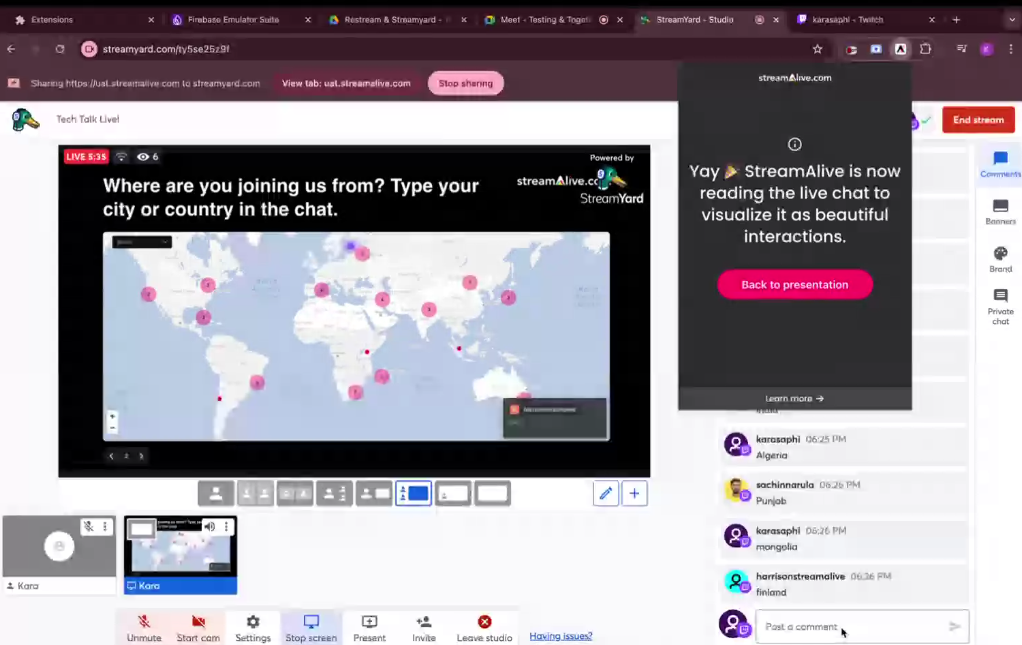
4. Share Your Screen
Within StreamYard, click the "Share Screen" button.
Choose the tab displaying the StreamAlive presentation.
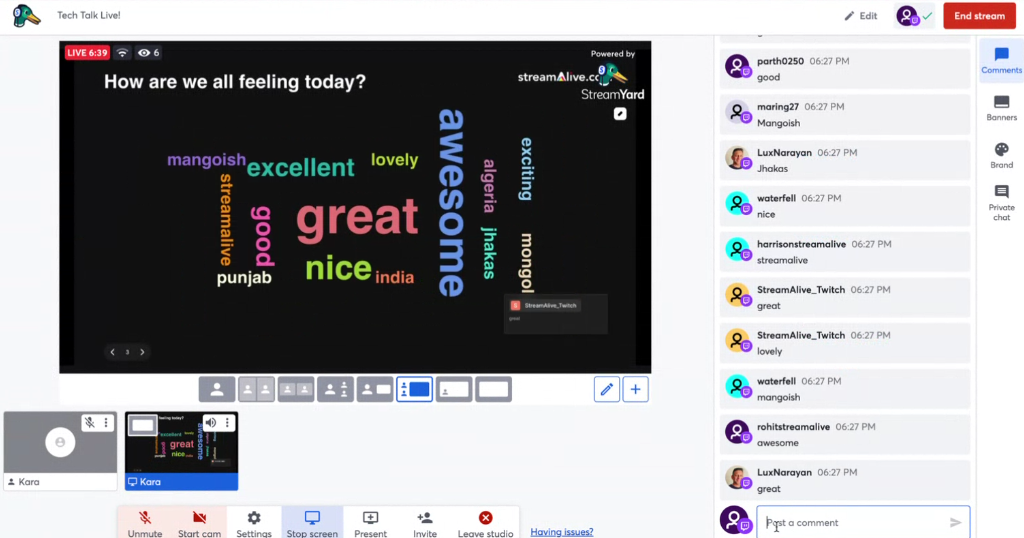
That's it! Your StreamAlive presentation is now live within your StreamYard broadcast, ready to engage your audience with interactive elements.
Additional Notes:
Ensure you have the latest version of the StreamAlive Chrome extension installed.
If you encounter any issues, refresh the StreamAlive tab or check your internet connection.
For detailed instructions on creating and managing presentations within StreamAlive, refer to the StreamAlive user guide.
Enjoy creating dynamic and interactive live streams with StreamAlive and StreamYard!